
R2 Storage
Upload, download, and manage files in your R2 storage
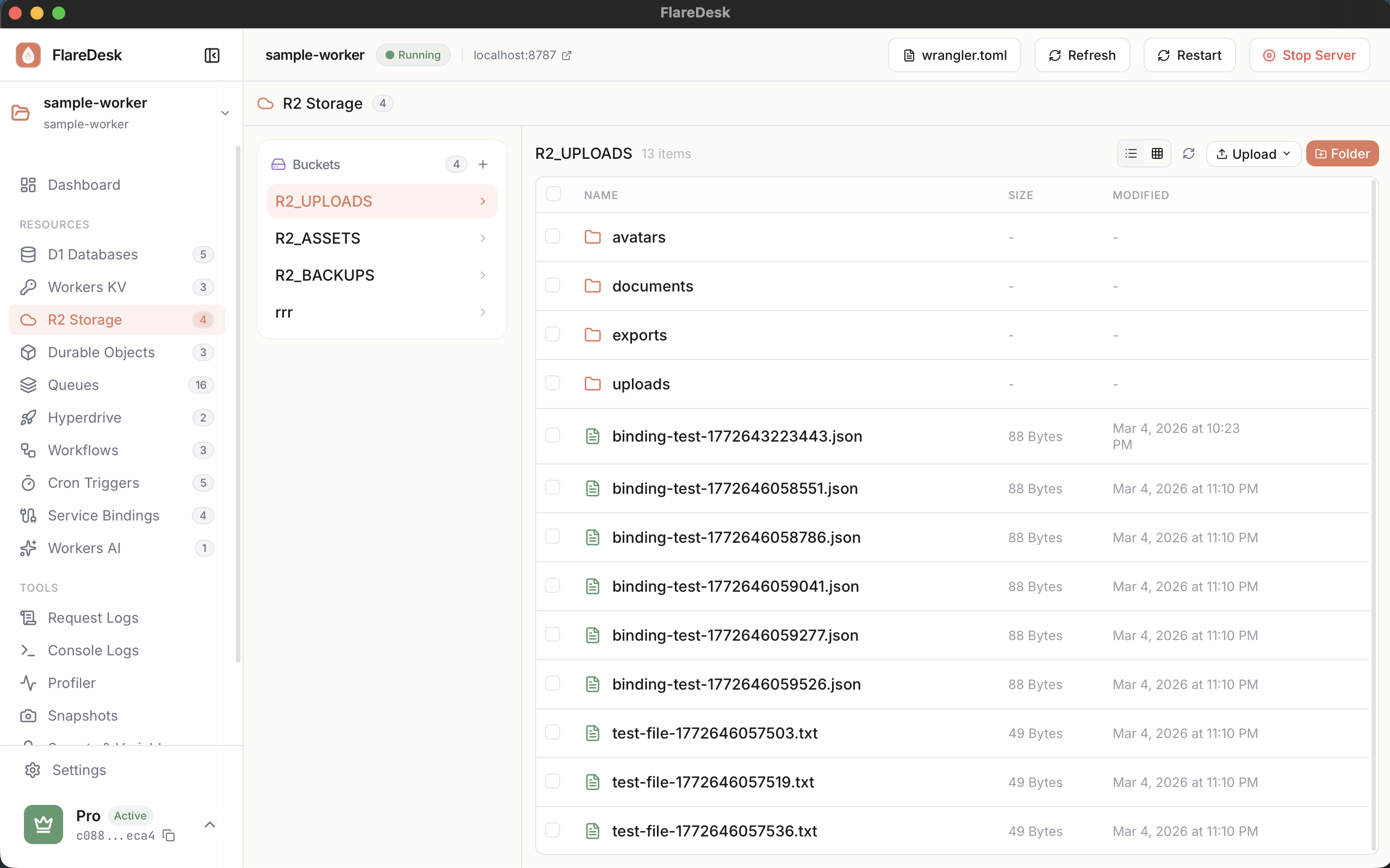
R2 is Cloudflare's object storage solution, compatible with S3 APIs. FlareDesk provides a visual file browser for managing your R2 buckets during local development.
Overview
File Browser
Navigate folders and view file structure
Upload Files
Upload files directly to your bucket
Download Files
Download objects to your computer
View Metadata
Inspect file metadata and properties
Browsing Files
- 1
Navigate to R2 in the sidebar
- 2
Select a bucket binding from the dropdown
- 3
Browse the file tree structure
- 4
Click folders to navigate into them
- 5
Use breadcrumbs at the top to navigate back
Uploading Files
- 1
Click the "Upload" button
- 2
Select one or more files from your computer
- 3
Choose the destination path (prefix) if needed
- 4
Click "Upload" to confirm
- 5
Progress is displayed during upload
Upload Tips
- You can upload multiple files at once
- Content-Type is automatically detected
- Files are uploaded to the current directory by default
- Large files may take longer to upload
Downloading Files
- 1
Click on any file in the list to select it
- 2
Click the "Download" button
- 3
The file will be saved to your Downloads folder
Deleting Objects
- 1
Select the file(s) you want to delete
- 2
Click the "Delete" button
- 3
Confirm the deletion in the dialog
Viewing Metadata
Click on a file to view its metadata in the details panel:
- Key: The full object key (path)
- Size: File size in bytes
- Content-Type: MIME type of the file
- Last Modified: When the file was last updated
- ETag: Entity tag for cache validation
- Custom Metadata: Any custom metadata you've set
Working with Prefixes (Folders)
R2 uses prefixes to simulate a folder structure. In FlareDesk:
- Prefixes appear as folders in the file browser
- Click a folder to navigate into it
- Use breadcrumbs to navigate back to parent directories
- The current path is shown at the top of the file list