
Durable Objects
Inspect instances and manage storage
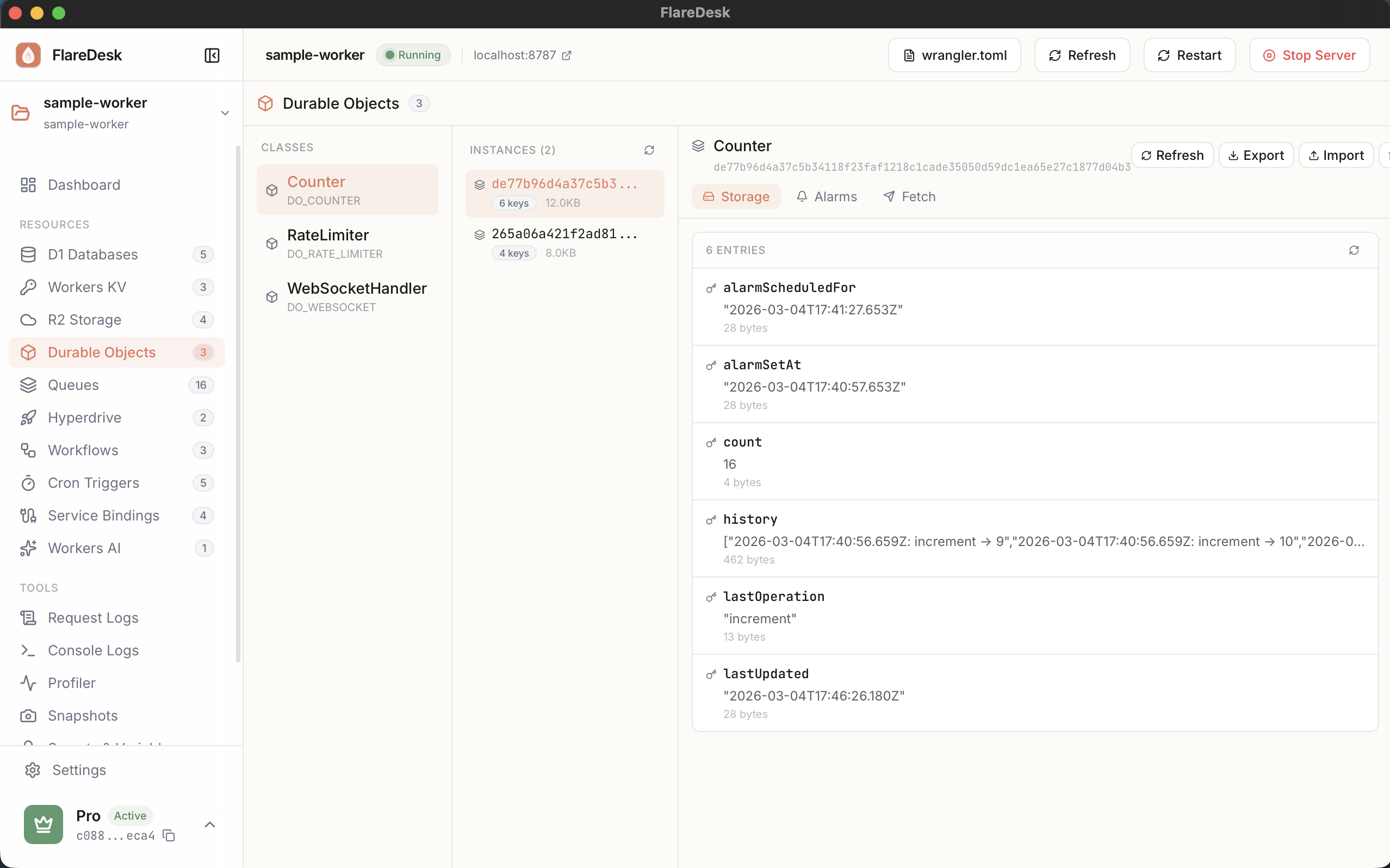
Durable Objects provide strongly consistent, transactional storage with a JavaScript runtime. FlareDesk lets you inspect active instances, view their storage, and manage their state.
Overview
List Instances
View all active Durable Object instances
Inspect Storage
View key-value pairs stored in instances
Manage Alarms
View and delete scheduled alarms
Export/Import
Backup and restore instance state
Listing Instances
- 1
Navigate to Durable Objects in the sidebar
- 2
Select a Durable Object class from the dropdown
- 3
View all active instances in the list
- 4
Click an instance to inspect it
env.DO.get(id). Only instances with stored data will appear in the list.Inspecting Storage
Each Durable Object instance has its own key-value storage. To inspect it:
- 1
Select an instance from the list
- 2
The Storage tab shows all key-value pairs
- 3
Click a key to view its full value
Storage Display
- Key: The storage key name
- Value: The stored value (JSON is formatted)
- Type: Data type (string, number, object, etc.)
Managing Alarms
Durable Objects can schedule alarms for future execution. In FlareDesk:
- View any scheduled alarms for the selected instance
- See alarm timestamps in local time
- Delete alarms if needed
storage.setAlarm(). FlareDesk lets you view and delete them, but not create new ones.Exporting State
Export an instance's storage for backup or sharing:
- 1
Select an instance
- 2
Click "Export State"
- 3
Save the JSON file to your computer
The exported file contains all key-value pairs as JSON, which can be imported later.
Importing State
Restore a previously exported state:
- 1
Select an instance
- 2
Click "Import State"
- 3
Select a previously exported JSON file
- 4
Confirm to overwrite existing state
Managing Storage Keys
You can manage individual keys or clear all storage:
Delete Individual Keys
Click the delete icon next to any key to remove it from storage.
Clear All Storage
Use "Clear All" to delete all keys. This cannot be undone.