
D1 Databases
Run SQL queries and browse your database tables
D1 is Cloudflare's serverless SQL database. FlareDesk provides a full-featured interface for managing your D1 databases during local development.
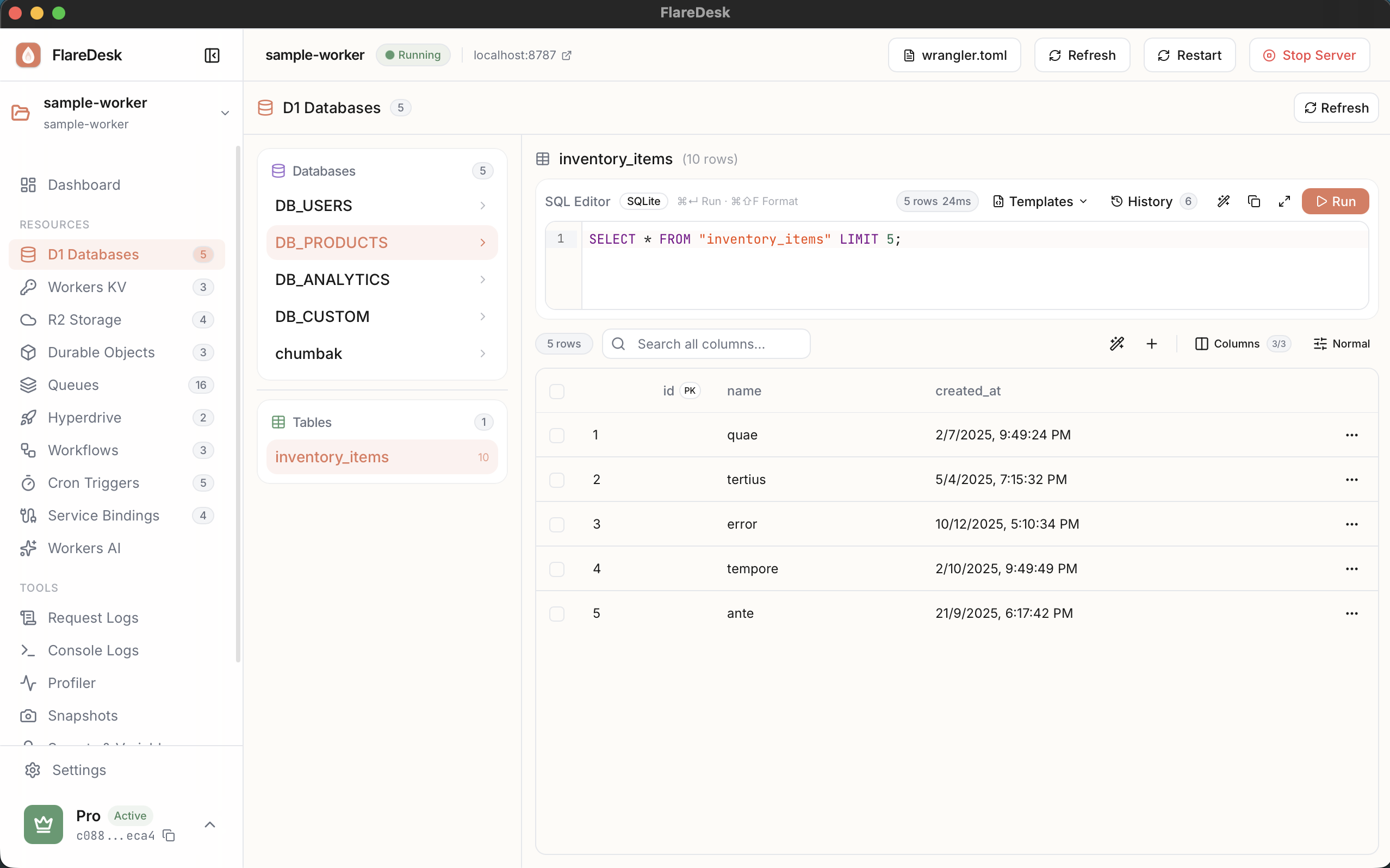
Overview
The D1 page in FlareDesk gives you complete control over your local D1 databases:
Browse Tables
View all tables and their contents
SQL Editor
Run queries with syntax highlighting
View Schema
Inspect table definitions and columns
Multi-Statement
Execute multiple SQL statements at once
Browsing Tables
- 1
Navigate to D1 in the sidebar
- 2
Select a database binding from the dropdown (if you have multiple)
- 3
View all tables in your database in the table list
- 4
Click a table name to view its contents
Running SQL Queries
The SQL Editor provides a powerful interface for running custom queries:
- 1
Click the "Query" tab to open the SQL editor
- 2
Write your SQL query in the editor (syntax highlighting included)
- 3
Click "Run Query" or press Cmd+Enter
- 4
View results in the sortable, filterable data table below
Multiple Statements
You can run multiple SQL statements in a single execution by separating them with semicolons:
Viewing Table Schema
To view the schema for a table:
- 1
Click on a table name in the table list
- 2
Click the "Schema" tab
The schema view shows all columns with their types, constraints, and default values.
Tips & Best Practices
Use LIMIT for Large Tables
When browsing large tables, use LIMIT to avoid loading too much data at once.
Query History
The editor preserves your query history within the session. Use the up/down arrows to navigate.
Export Results
Select query results and copy them to your clipboard for use in other applications.