
Queues
Send messages and monitor queue activity
Queues enable asynchronous message processing in your Workers. FlareDesk makes it easy to send test messages and monitor queue activity during development.
Overview
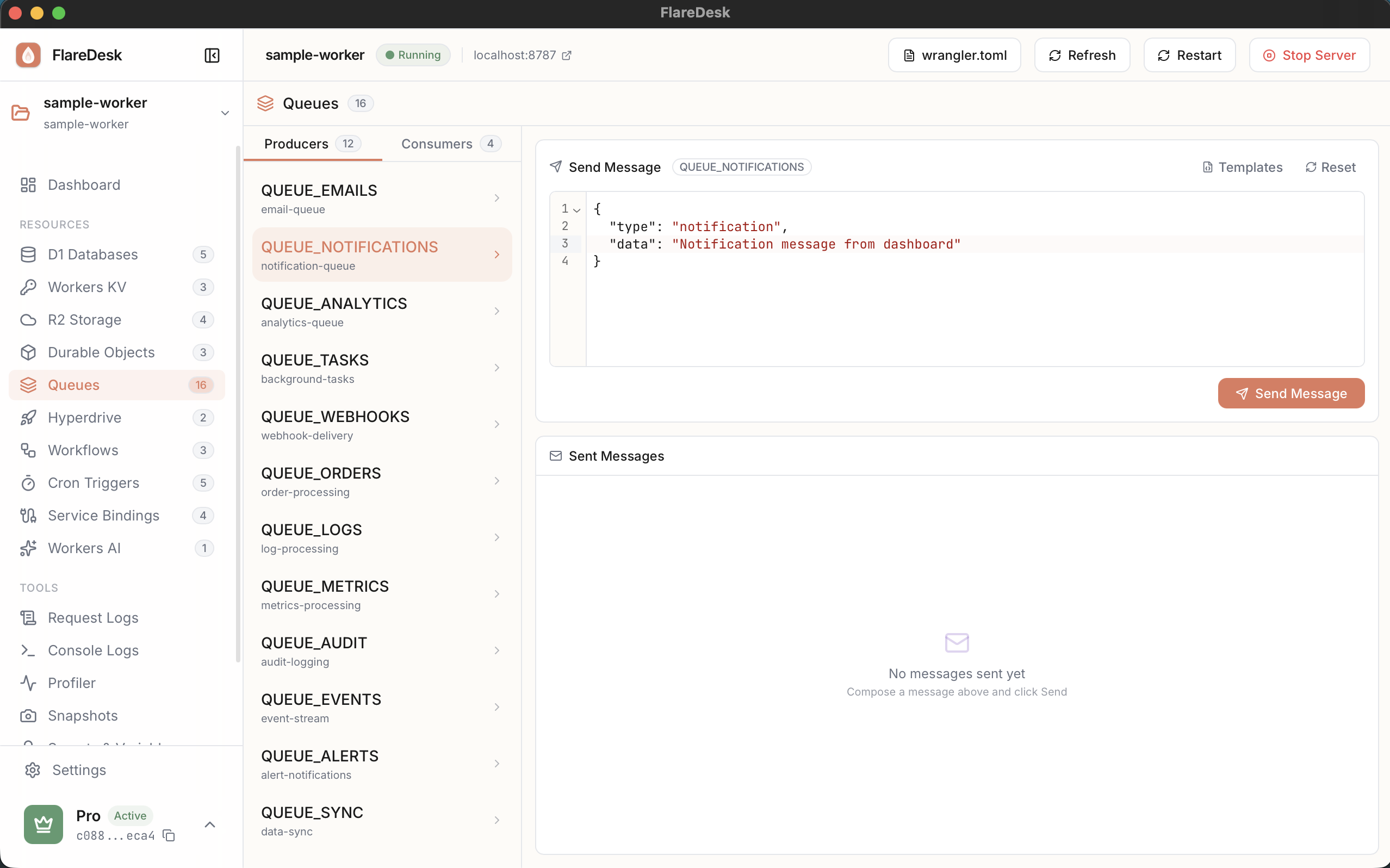
Send Messages
Send individual messages to queues
Batch Send
Send multiple messages at once
Monitor Activity
View queue logs in real-time
Sending Messages
- 1
Navigate to Queues in the sidebar
- 2
Select a queue binding from the dropdown
- 3
Enter your message content in the editor
- 4
Click "Send Message"
Sending Batch Messages
Send multiple messages at once for testing batch processing:
- 1
Click "Send Batch"
- 2
Enter multiple messages (one per line or as a JSON array)
- 3
Click "Send" to enqueue all messages
Monitoring Queue Activity
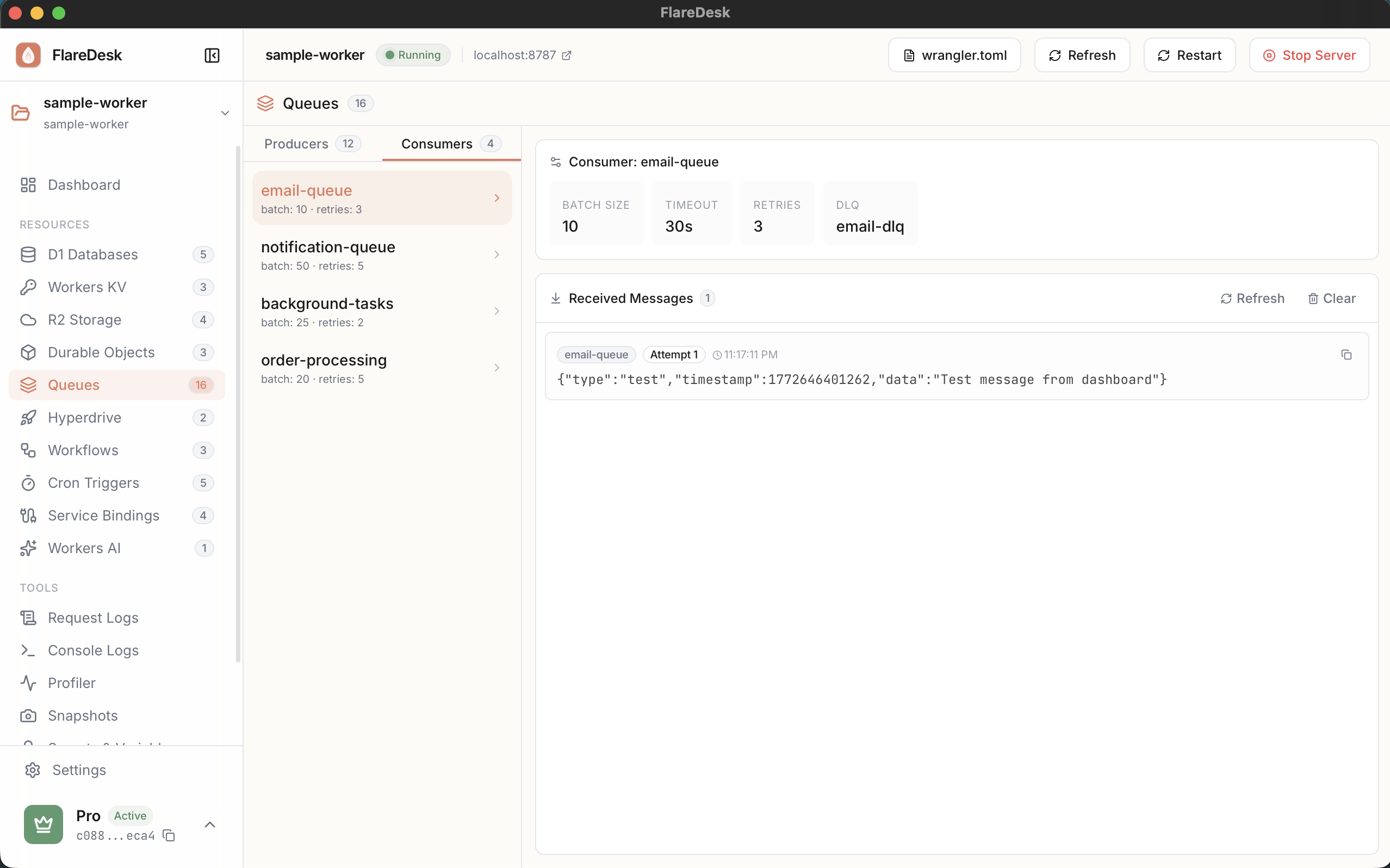
FlareDesk shows queue activity in real-time:
- View messages as they're sent to the queue
- See message processing status
- Monitor for errors or failures
- Track message delivery confirmation
Queue Logs Show
- Timestamp: When the message was sent
- Message ID: Unique identifier for the message
- Status: Pending, delivered, or failed
- Content Preview: First 100 characters of the message
Best Practices
Use Structured Messages
Use JSON for messages to include metadata like type, timestamp, and correlation IDs.
Test Error Handling
Send malformed messages to test your consumer's error handling.
Use Request Logs
Check the Logs page to see how your worker processes queue messages.