
Secrets & Variables
Manage variables and secrets for your Worker
Environment variables let you configure your Worker without hardcoding values. FlareDesk makes it easy to view and manage your local development environment.
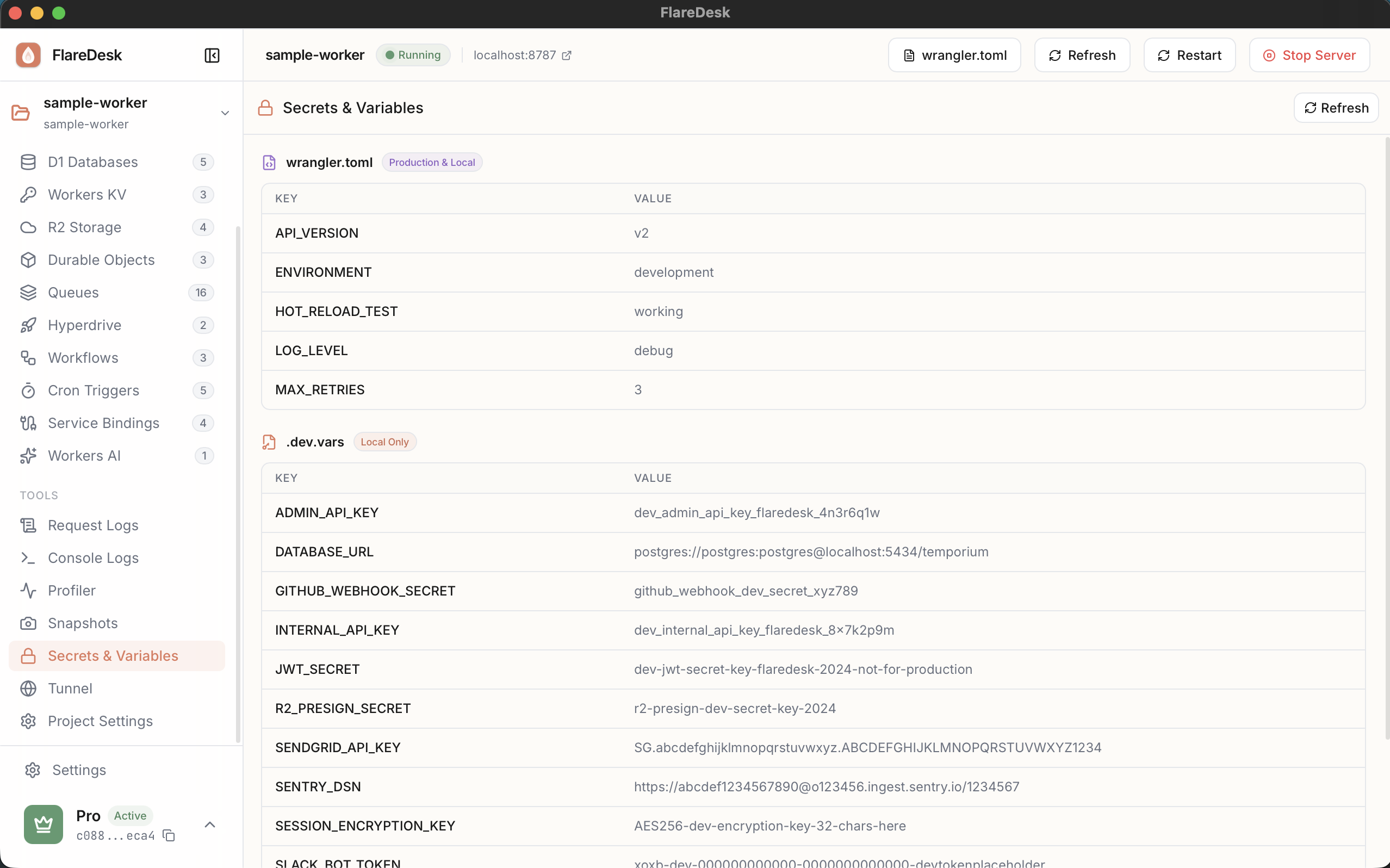
Overview
View Variables
See all configured environment variables
Add Variables
Create new environment variables
Edit Values
Modify existing variable values
Secrets
Mark sensitive values as secrets
Viewing Variables
- 1
Navigate to Environment in the sidebar
- 2
View all variables defined in your
wrangler.toml - 3
Secrets are masked by default (click to reveal)
Adding a Variable
- 1
Click "Add Variable"
- 2
Enter the variable name (e.g.,
API_KEY) - 3
Enter the value
- 4
Toggle "Secret" if the value is sensitive
- 5
Click "Save"
Variables vs Secrets
| Type | Description | Storage |
|---|---|---|
| Variable | Non-sensitive configuration | Stored in wrangler.toml (visible) |
| Secret | Sensitive data (API keys, tokens) | Stored in .dev.vars (hidden) |
Security tip: Never commit secrets to version control. Add
.dev.vars to your .gitignore.Configuration Files
FlareDesk reads variables from two sources:
# wrangler.toml - for non-sensitive variables
[vars]
ENVIRONMENT = "development"
API_URL = "https://api.example.com"
# .dev.vars - for secrets (not committed to git)
API_KEY=your-secret-api-key
DATABASE_URL=postgres://user:pass@host/db
Using Variables in Your Code
Access environment variables through the env parameter:
export default {
async fetch(request, env) {
// Access variables
const apiKey = env.API_KEY;
const environment = env.ENVIRONMENT;
return new Response(`Running in ${environment}`);
}
}